Before we touch any tool, let's make sure we're on the same page about what Copilot actually is — because there is a lot of confusion and frankly a lot of nonsense being said about it.
Copilot in Plain English
Microsoft Copilot is an AI assistant built directly into the Microsoft 365 tools you already use every day. Word. Excel. Outlook. Teams. PowerPoint. It sits inside those applications and helps you write, summarise, analyse, and create — faster than you ever could alone.
It is not a separate app you need to download. It is not something complicated. It is a button — or a sidebar — inside the tools already on your screen.
Why Did Your Employer Pay For It?
Microsoft Copilot is not free. Your employer has paid for a licence for every person in your organisation who has it. In the NHS, in councils, in law firms, in accountancy practices across the UK — organisations are paying thousands of pounds every year for Copilot licences.
Why? Because they believe it will make their staff more productive. More efficient. Able to do more in less time.
Here is the honest reality: if you are not using Copilot, your employer is paying for something you are not using. And the colleagues who ARE using it are getting more done, making fewer errors, and spending less time on the repetitive parts of their job.
Where Do You Find Copilot?
Copilot appears in different places depending on which application you are in:
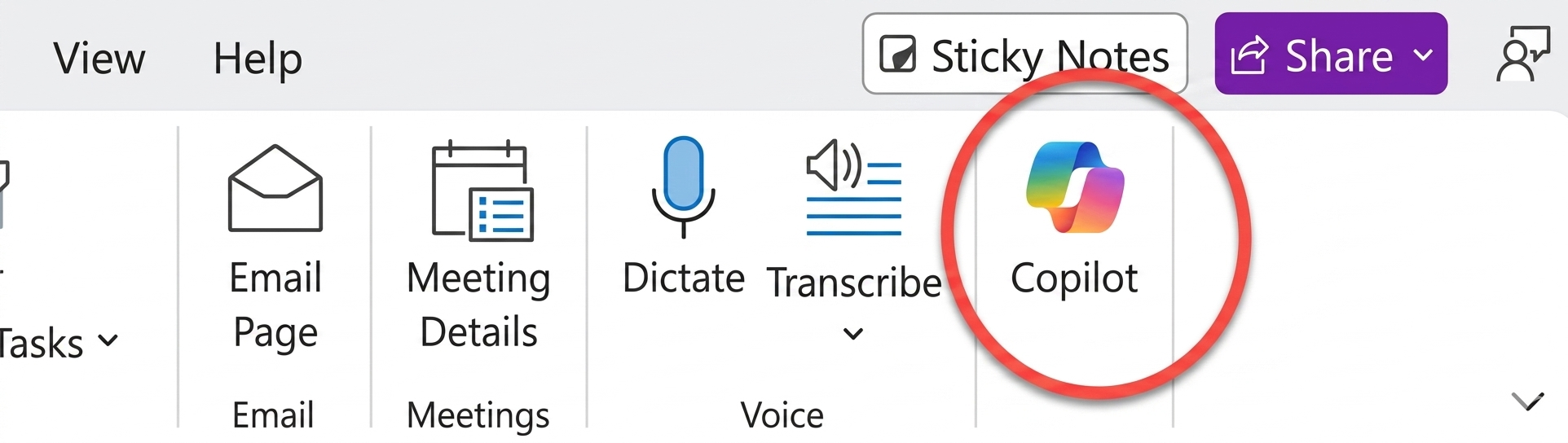
- In Word: look for the Copilot button in the Home tab on the ribbon, or the small Copilot icon in the left margin when you are typing
- In Excel: look for the Copilot button in the Home tab
- In Outlook: look for the Copilot button when you are composing or reading an email
- In Teams: look for the Copilot icon in a meeting or in a chat
- In the Microsoft 365 homepage: there is a standalone Copilot chat you can access directly
What Can Copilot Actually Do?
- Write first drafts of documents, emails, and reports from a simple description
- Summarise long documents into a short paragraph
- Rewrite text to make it clearer, shorter, or more professional
- Answer questions about a document you are looking at
- Analyse data in a spreadsheet and explain what it means
- Create charts and tables from your data automatically
- Summarise email threads so you do not have to read 47 messages
- Take meeting notes and list action points automatically
- Translate documents into other languages
The One Thing to Remember From This Lesson
Copilot does not replace you. It does not know your job better than you do. It does not understand your organisation's specific context unless you tell it.
What it does is take away the mechanical, time-consuming parts of your work — the blank page, the formatting, the summarising, the first draft — so you can focus on the parts that actually require your expertise and judgment.
Exercise — Before You Move On
Open Microsoft Word. Look for the Copilot button in the ribbon at the top. Click it. See what appears. You do not need to do anything else yet — just find it and get comfortable with where it lives.
If you are in Outlook, open a long email thread and look for the Copilot option. It may say "Summarise" — click that and see what happens.
Most people ask Copilot for information. The people getting the best results tell Copilot who it is before asking anything.
Instead of just asking "write me an email about the new parking policy" — try this first:
The difference in quality is immediate. Copilot shifts from generic assistant to professional colleague.
Try these role openers for your job: "Act as an NHS Patient Liaison..." or "Act as a senior UK Civil Service advisor..." or "Act as an experienced legal PA at a UK law firm..." — then ask your question as normal.
Bonus: Copilot now remembers context across sessions in 2026 — so if you set your role once, it carries it forward into your next conversation without you repeating it.
Most people ask Copilot for information. The people getting the best results tell Copilot who it is before asking anything.
Instead of just asking "write me an email about the new parking policy" — try this first:
The difference in quality is immediate. Copilot shifts from generic assistant to professional colleague.
Try these role openers for your job: "Act as an NHS Patient Liaison..." or "Act as a senior UK Civil Service advisor..." or "Act as an experienced legal PA at a UK law firm..." — then ask your question as normal.
Bonus: Copilot now remembers context across sessions in 2026 — so if you set your role once, it carries it forward into your next conversation without you repeating it.
The Role-Play Prompt. Tell Copilot who it is before asking anything. Start with: Act as a senior NHS Patient Liaison or Act as a UK council communications officer. The quality difference is immediate and dramatic.
Most people ask Copilot for information. The people getting the best results tell Copilot who it is before asking anything.
Instead of just asking Copilot to write an email about the new parking policy try starting with this:
Try these role openers for your job: Act as an NHS Patient Liaison or Act as a senior UK Civil Service advisor or Act as an experienced legal PA at a UK law firm. The difference in output quality is immediate. Copilot also remembers context across sessions in 2026 so you only need to set your role once.